
Breaks and Schedules
Sane Break organizes breaks into cycles of short rests (Small Breaks) and longer recovery rests (Big Breaks), delivered through a two-phase reminder window.
Small and Big Break Cycles
Under Preferences -> Schedule -> Normal Schedule, Sane Break tracks two break types.
- Small Breaks happen after a regular work interval (by default, a 20-second break every 20 minutes).
- Big Breaks replace every Nth small break with a longer rest (by default, every 3rd break is a 1-minute big break).
With the default schedule (small break every 20 minutes, big break every 3 breaks), a complete cycle runs through three intervals.
- 20 minutes of work -> Small Break (20 seconds)
- 20 minutes of work -> Small Break (20 seconds)
- 20 minutes of work -> Big Break (1 minute)
Big breaks can be turned off if you prefer uniform intervals.
Pre-Break Warnings
Before a break starts, Sane Break can give you an early heads-up under Preferences -> Reminder so you can wrap up your current line of thought.
- Flash tray icon before break (default 30 seconds) blinks the system tray icon during the final seconds of a work session. Setting it to
0disables tray flashing. - Show heads-up before break (default 30 seconds) displays a small floating pill at the top center of the screen showing the remaining time before the break. Clicking the pill starts the break immediately. Setting it to
0disables the heads-up pill.

The Two-Phase Break Flow
When the work timer reaches zero, Sane Break starts the break. Instead of blocking the screen right away, it progresses through two phases controlled under Preferences -> Reminder.
Phase 1 (Flashing Prompt)
A small, non-intrusive banner appears at the top of the screen and flashes gently.
- The window does not steal keyboard focus, and on Wayland, macOS, and Windows it allows mouse clicks to pass right through to the windows underneath.
- You can finish typing a sentence, save a file, or reach a natural stopping point.
- As soon as you stop keyboard and mouse input for 2 seconds, Sane Break expands to the full-screen break.
- If you keep working continuously for the full Show break prompt for duration (default 30 seconds), Sane Break enters Force Break mode and expands to full screen automatically.
Phase 2 (Full-Screen Break)
Once the window expands to full screen, the break countdown ticks down.
- Before the break locks in applies when the window expanded because you paused input. During the first Confirm break after seconds (default 30 seconds), moving the mouse or pressing a key resets the break countdown and shrinks the overlay back to the flashing prompt so you can finish what you forgot.
- Locked full screen engages once you have stayed idle for the Confirm break after threshold (or immediately if the flashing prompt timer ran out and triggered a Force Break). The full-screen window then stays in place until the countdown finishes.
Full-Screen Break Controls
When the full-screen break locks in place, action buttons appear at the bottom of the screen (when Buttons is enabled in Preferences -> Interface).
- Lock Screen immediately locks your OS session.
- Pause Media pauses active audio or video playback across the system.
- Exit Force Break shrinks the locked full-screen overlay back to the flashing prompt and restarts the prompt timer. To prevent endless bypassing, this button is limited by Max number of force break exits (default 2 times per break).
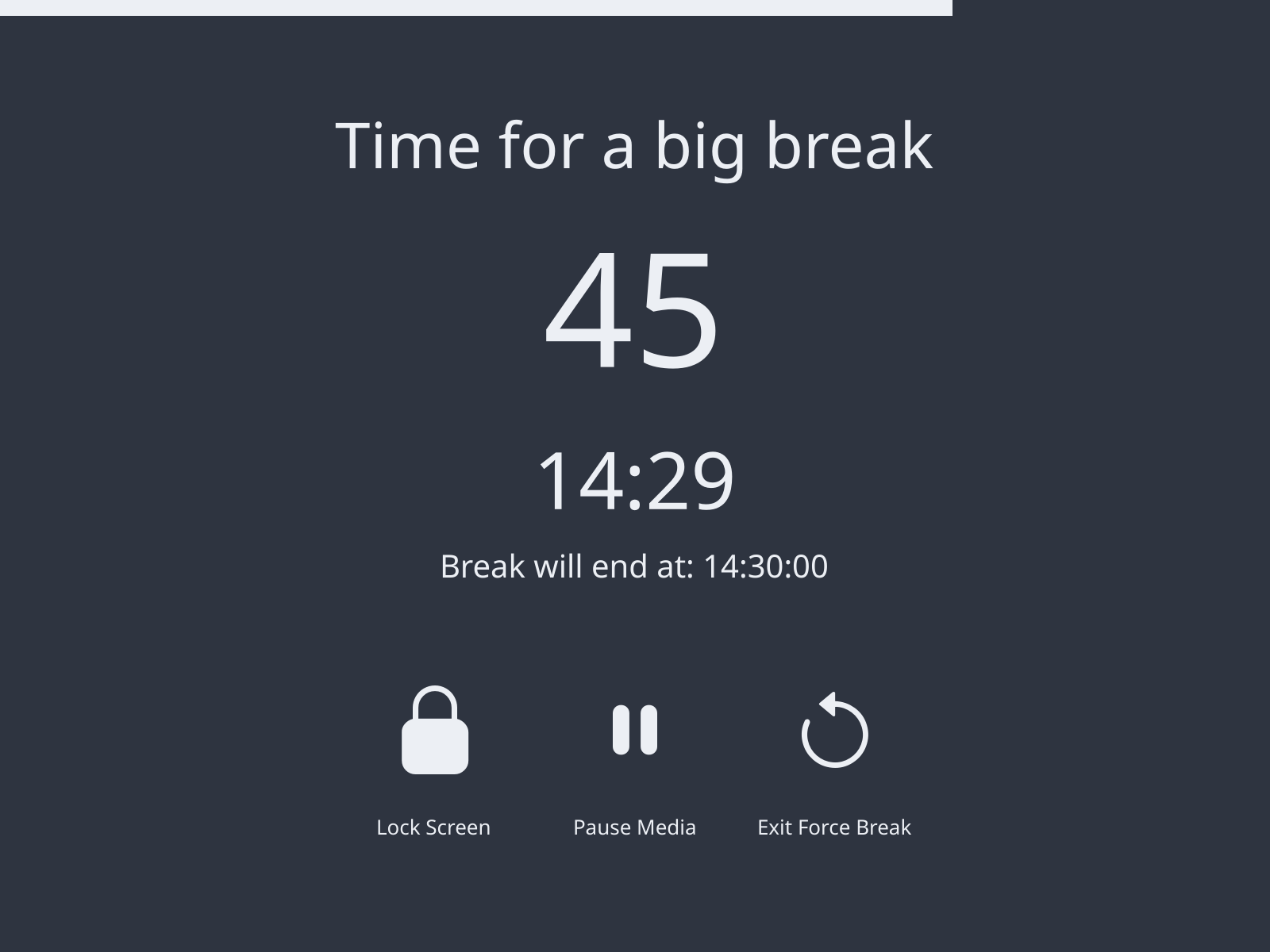
If a big break starts when you only have time for a brief rest, the tray menu provides Take a small break instead during the break. Sane Break converts the current break into a small break and keeps the big break queued for the next interval.
Post-Break Window Closing and Auto Screen Lock
When the break countdown reaches zero, Sane Break checks whether you are back at the computer.
- If you are actively using the computer, the break window closes and the next work session starts immediately.
- If you are still away from the computer, Sane Break waits until you return before starting the next work timer.
- When Close windows right after small/big break ends is enabled (the default), the break overlay closes as soon as the countdown finishes.
- When unchecked, the full-screen overlay stays on screen at
0with action buttons hidden (and displaysBreak has endedif Time when break ends is enabled) until you move the mouse or press a key. - If you remain away after a small break for at least the extra length of a big break, Sane Break counts the extended absence as a full recovery rest and resets the big-break cycle counter.
Automatic screen lock after break start under Preferences -> General (Disabled, 30 sec, 1 min, 2 min, or 5 min) starts a timer when the break enters full-screen mode and locks your session if no input is detected before the timer expires.
Tray Icon and Quick Actions
The system tray icon displays your current mode and progress at a glance.
- Green progress ring shows the normal schedule, emptying as the next break approaches.
- Yellow corner dot indicates that the upcoming break is a Big Break.
- Purple progress ring indicates that Focus Mode is active.
- Blue progress ring indicates that Meeting Mode is active.
- Pause icon appears while breaks are paused, during an active break, or while a postponed countdown exceeds a normal work interval.
The tray menu provides Next break after... and Next big break after... to start a break early. Enabling Start next break after middle clicking on tray icon (Linux) or double clicking on tray icon (Windows) under Preferences -> General triggers the next break directly from the tray icon.