
Customization and Statistics
Sane Break lets you tailor the appearance and audio of small and big breaks independently, inspect your daily rest habits, and manage your local configuration files.
Visual Customization
Under Preferences -> Interface, you can configure the look and feel of the break windows.
- Flash speed (default 120 BPM) controls how rapidly the Phase 1 prompt pulses. Setting it to
0produces a solid, non-flashing banner. - Break messages accept one message per line for Small break messages and Big break messages. When a break expands to full screen, Sane Break picks one line at random from the list.
- Components to Show toggles which elements appear on the full-screen overlay for small and big breaks separately.
- Progress bar (also shown in the flashing prompt)
- Countdown timer
- Clock (current time of day)
- Time when break ends
- Buttons (Lock Screen, Pause Media, and Exit Force Break)
- Color Theme uses
#AARRGGBBhex format (alpha, red, green, blue). Separate Background color, Prompt flash color, and Background image files can be configured for small and big breaks, along with shared colors for the Message text and Count down timer. - Preview Break Windows runs a 2-second flashing prompt and 4-second full-screen preview of your saved small and big break themes.
Dynamic Break Customization with Hooks covers dynamic per-break overrides such as rotating wallpapers from a folder or fetching quotes from a script.
Sound Effects
Under Preferences -> Sound, you can assign a Bell before breaks (played when the break prompt appears) and a Bell after breaks (played when the full-screen break completes) for both small and big breaks.
You can select one of the built-in sounds (chime, ding, wood, bell) or click Browse to import a custom .mp3, .wav, .ogg, .flac, or .m4a file. Sane Break copies imported audio files and background images into its application data directory so they keep working even if the original file moves.
Activity and Break Statistics
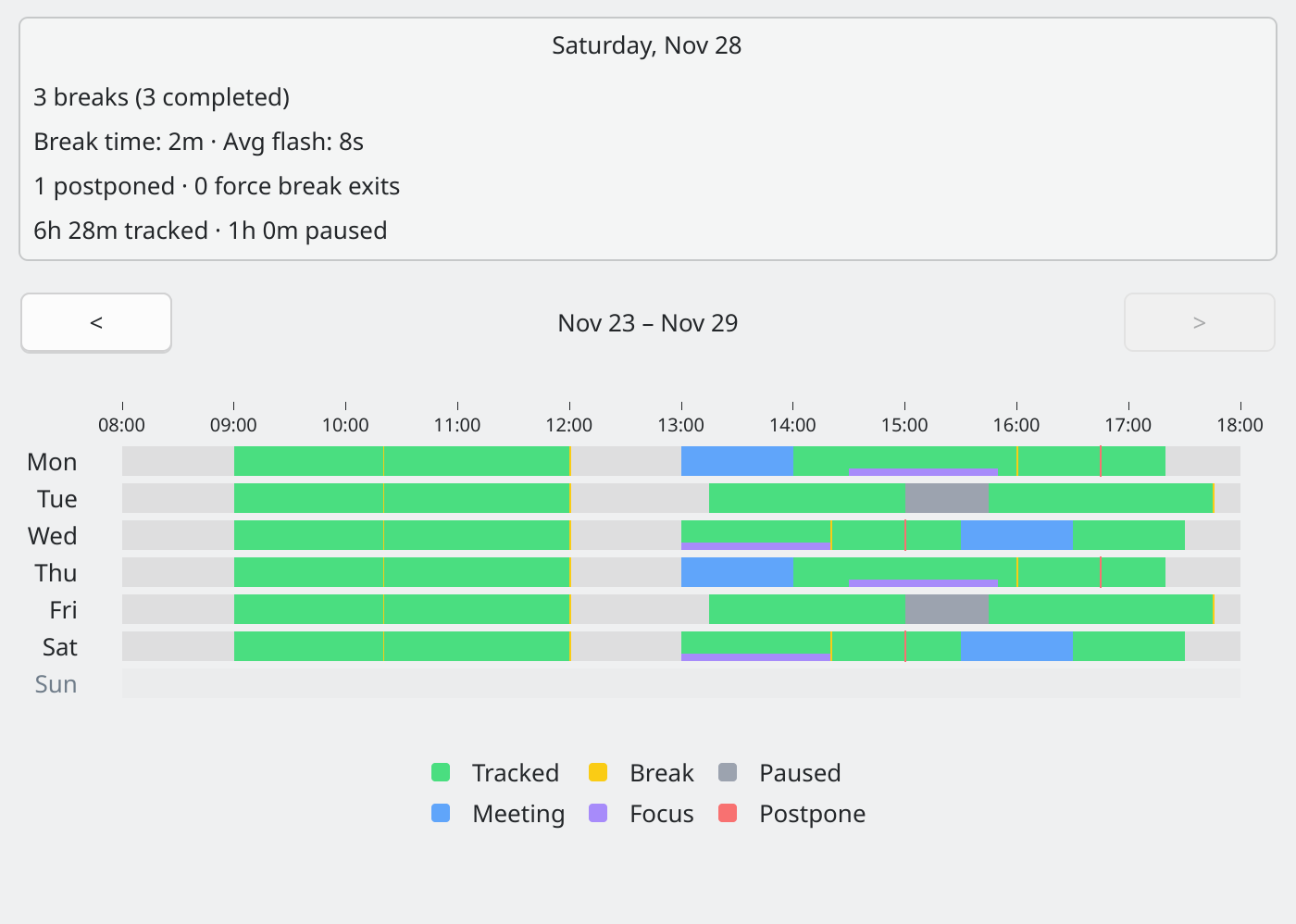
Selecting Statistics from the system tray menu opens the weekly timeline and daily summary window.
Daily Metrics
Hovering over any day in the timeline (or viewing today by default) displays four summary metrics.
- Breaks reports total breaks triggered that day and how many were completed normally.
- Break time and prompt response reports total time spent in breaks and your Avg flash time (the average number of seconds the Phase 1 prompt flashed before you stopped working and let the break start).
- Postpones and force exits reports how many times a break was postponed or exited via Exit Force Break that day.
- Tracked and paused time compares total active work time tracked in Normal mode against time spent in Paused or Meeting states.
Weekly Timeline
The timeline visualizes each day's spans across active hours, color-coded by activity (normal work, breaks, meetings, pauses, and focus sessions) along with markers for postpone events. The < and > buttons navigate across weeks.
Where Configuration and Data Are Stored
Sane Break displays the exact paths to your active Configuration file and Database file under Preferences -> General.
Configuration File (SaneBreak.ini)
- Linux and macOS store preferences in
~/.config/SaneBreak/SaneBreak.ini. - Windows stores preferences in
%APPDATA%\SaneBreak\SaneBreak.ini. - Portable Mode activates automatically when a file named
SaneBreak.iniexists in the same directory as thesane-breakexecutable, storing all preferences there instead of the user profile directory.
SaneBreak.ini is a plain-text file that can be backed up or edited while Sane Break is closed. In addition to the preferences exposed in the GUI, the [postpone] section supports shrink-next-session-ratio (default 100), which controls the percentage of postponed time subtracted from the following work session.
Statistics Database (sane-break.db)
All statistics are stored locally in a SQLite database (sane-break.db) inside your platform's standard application data directory.
- Linux uses
~/.local/share/SaneBreak/sane-break.db(or~/.var/app/io.github.AllanChain.sane-break/data/SaneBreak/sane-break.dbfor Flatpak). - macOS uses
~/Library/Application Support/SaneBreak/sane-break.db. - Windows uses
%APPDATA%\SaneBreak\sane-break.db.
Sane Break never collects telemetry or makes network requests. Deleting sane-break.db while Sane Break is closed resets your statistics history.